-19%


500 Coins
$4.65$5.51
Buy
 EN
EN

A MICO Live recharge on UUTOP takes only a few steps. Open the MICO Live Coins product page, choose a coin package, enter your account ID, select an available checkout option, and complete the payment. Once the payment is confirmed, the coins are automatically credited to the corresponding MICO Live account.
Before starting your MICO Live top up, check that you have selected an eligible product and copied the correct account ID. UUTOP does not require your MICO Live password. You should also review the package quantity and final order total before placing the order.
MICO Live is a social networking and live-streaming app where users can watch broadcasts, chat, share photos and videos, and connect with people around the world.
MICO Live Coins are virtual credits used within the app. Users can spend them on virtual gifts and other supported interactions during live streams.
When you buy MICO Live Coins through UUTOP, the coins are sent directly to the account connected to the ID submitted with the order. Choosing the correct package and entering the correct ID are therefore the two most important parts of the recharge process.
Prepare your account ID and decide how many coins you want before opening the checkout. You should also review the product eligibility notice to make sure the selected listing applies to your account.
Open the MICO Live app and tap the profile icon in the lower-right corner. Your ID should appear beneath or near your nickname. Its exact position may vary between app versions.
If you cannot locate it, use the How to find my ID? helper on the UUTOP product page.
Copy the ID directly when possible. Your nickname, email address, and phone number should not be used as substitutes for the requested account identifier.
Read the eligibility information displayed on the product page before choosing a package. This helps ensure that the selected product matches your MICO Live account.
If you are uncertain about product compatibility, check the related listings or contact UUTOP support before completing the purchase.
The UUTOP product page displays multiple coin denominations with their current prices. Choose a package according to your expected use rather than automatically selecting the largest option.
A smaller package may be suitable if you only plan to send a few virtual gifts or want to make a smaller first purchase. This keeps the order closer to your immediate needs and makes it easier to confirm the delivered amount.
Regular users can compare the current cost per coin:
Cost per coin = final package price ÷ number of coins
Use the final displayed price for this calculation. A crossed-out reference price or promotional label does not necessarily identify the package with the lowest cost per coin.
A larger package may be more convenient when you already know that you will use more coins. Before paying, check that the package amount and final cost fit your intended budget.
Also review the selected quantity. Increasing the quantity can add multiple copies of the same package and change the final order total.
Coin prices and promotions may change, so use the information shown on the live product page rather than figures from an older article or screenshot.
 MICO Live CoinsTop Up Now 19% Off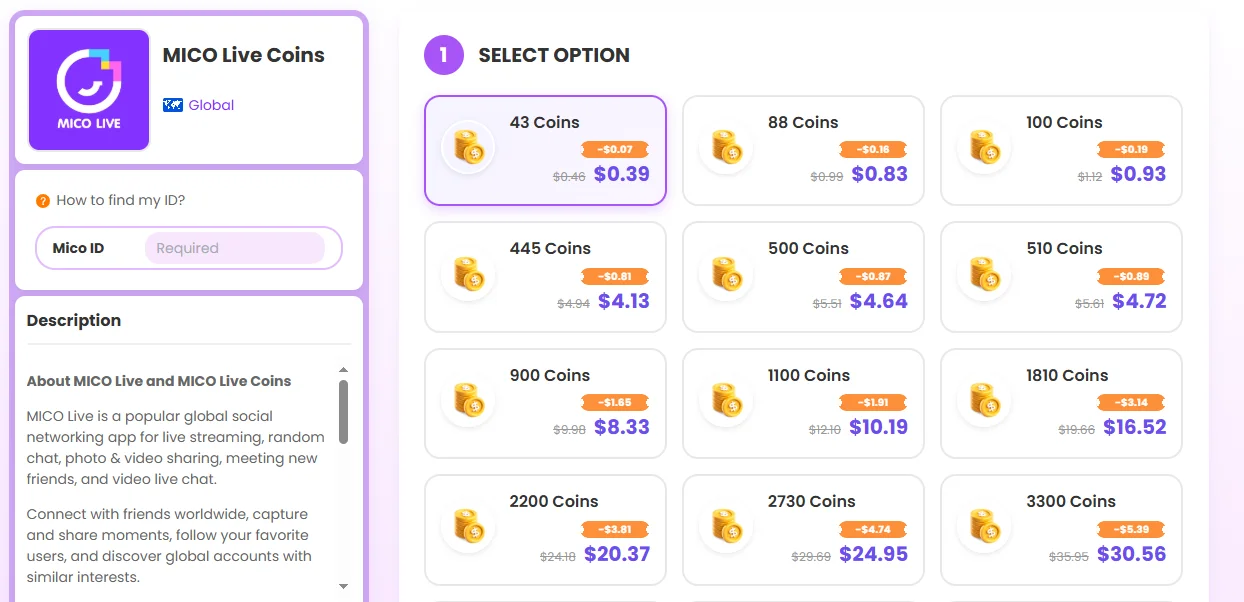
Go to UUTOP and open the MICO Live Coins listing. Check the product name, icon, and eligibility information to confirm that you have selected the intended product.
Starting from the UUTOP website also helps you avoid unrelated listings or links shared by unknown individuals.
Review the available denominations and choose the amount you want to purchase. The selected package should appear in the order summary.
Check the coin amount, quantity, and displayed price before continuing.
Enter the ID copied from your MICO Live profile. This tells the recharge system which account should receive the coins.
Compare the submitted ID with the one displayed in the app before moving to checkout. Do not enter your nickname or account password in this field.
Choose one of the checkout options currently displayed on the page and follow the payment instructions.
Available options may change, so rely on the live checkout. Confirm that the payment amount matches the total shown in your UUTOP order summary.
Before paying, confirm the following details:
Complete the payment after verifying the order. Keep the order number or payment confirmation until the coins appear in your account.
UUTOP provides a clear and straightforward way to recharge MICO Live Coins. The entire order can be completed on one product page: choose a coin package, enter the correct account ID, review the order details, and complete the payment. Once the payment is confirmed, the coins are automatically credited to the corresponding account.
Several features make the UUTOP recharge process reliable:
This process gives users a clear view of what they are purchasing, which account will receive the coins, and how much they will pay before the order is submitted.
To ensure a smooth recharge, review the account ID, product eligibility, package amount, and final total before completing the payment. Keeping the order confirmation also helps the support team locate and resolve any transaction issue more efficiently.
After completing the order, open MICO Live and check your coin balance. If the app was already running, refresh the relevant screen or restart it to load the updated account information.
Compare the new balance with the amount you had before the recharge. The increase should match the purchased package, excluding any coins spent after completing the order.
If the balance has not changed, check the payment and order status before submitting another purchase. This helps prevent accidental duplicate orders.
If your coins have not appeared, work through these checks:
If the order still requires assistance, contact UUTOP support and provide:
Never send your MICO Live password or complete private payment credentials. If you entered the wrong ID, contact support as soon as possible so the team can check the order status and available resolution.
Coins are automatically credited after the payment is confirmed. If your balance does not update, check the order status before placing another order.
No. UUTOP only requires the account ID needed to direct the coins to the correct profile. Never share your MICO Live password during the recharge process.
Contact UUTOP support as soon as possible and provide the order number and submitted ID. The available resolution will depend on the current order status.
Confirm the payment and order status, restart MICO Live, and check the account balance again. If the issue continues, contact UUTOP support with the relevant order details.
Elena Carter is a content writer at UUTOP who focuses on creating clear, practical, and engaging articles. She is committed to helping readers quickly understand useful information and enjoy a smoother reading experience.
